
- Help
- Leather features
Labels, fold lines and cutouts
A pattern tells the maker what to do with each line. Mark folds and cutouts, write labels, and print sizes where they help.
Text labels
- Pick Text (T) and click the canvas, or drag a box the size the text should be.
- Type, then press Enter. Esc cancels.
The text fills its box: make the box bigger to make the text bigger. Choose a Font from over 300 in the panel, and change the words under Content. Double-click a label to edit it on the canvas.
Fold lines
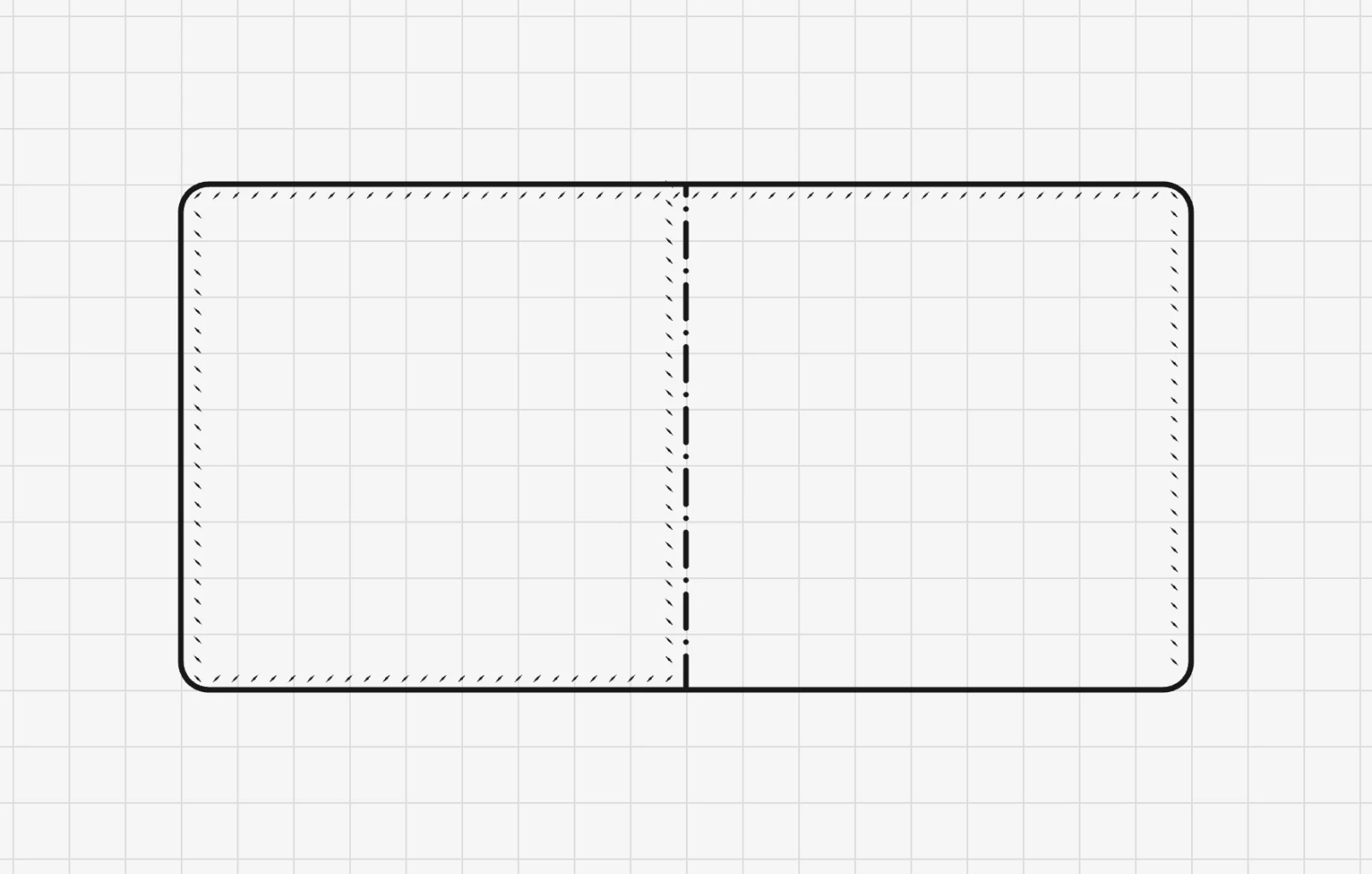
Draw a straight line where the leather folds, select it and click Fold line. It turns into a dash-dot line, the usual drawing mark for a fold, on the canvas and in every PDF. Click it again to make it an ordinary line.
Cutouts
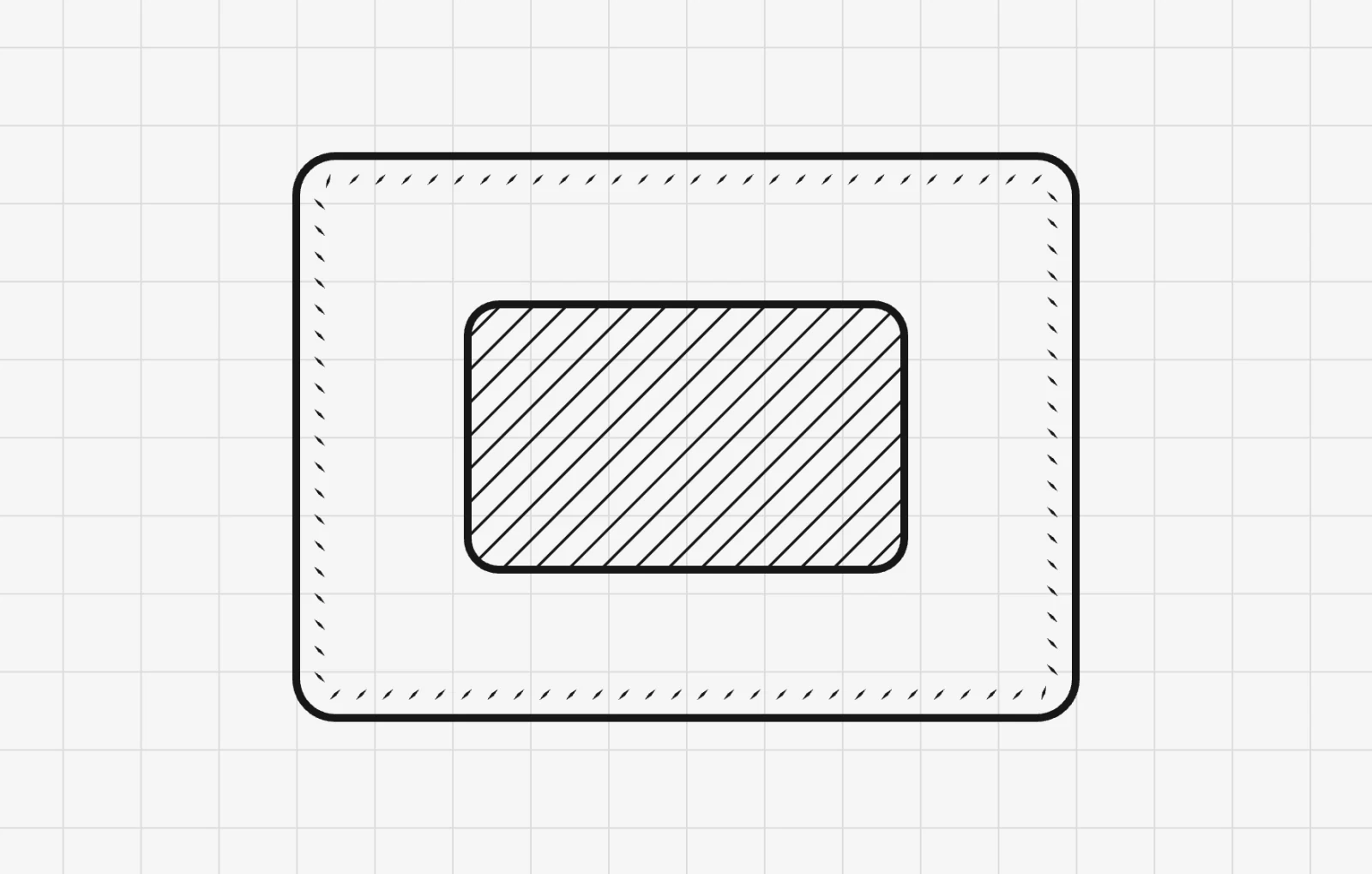
Select a closed shape inside a part, such as an ID window or a slot, and click Cutout. Its inside fills with diagonal hatching, as in a technical drawing, so it is never mistaken for a placement mark. Its outline is still a cut line.
Rectangles, circles and closed outlines can be cutouts.
Show measurements
Select a part and tick Show measurements: every side gets its length on the canvas, and a circle its diameter. The labels follow as you change the part.
To print them too, tick Print dimensions in the Export panel. See Print the sizes.
Something missing or unclear? Write to support@easypatt.com and it gets fixed.