
- Help
- Getting started
The editor at a glance
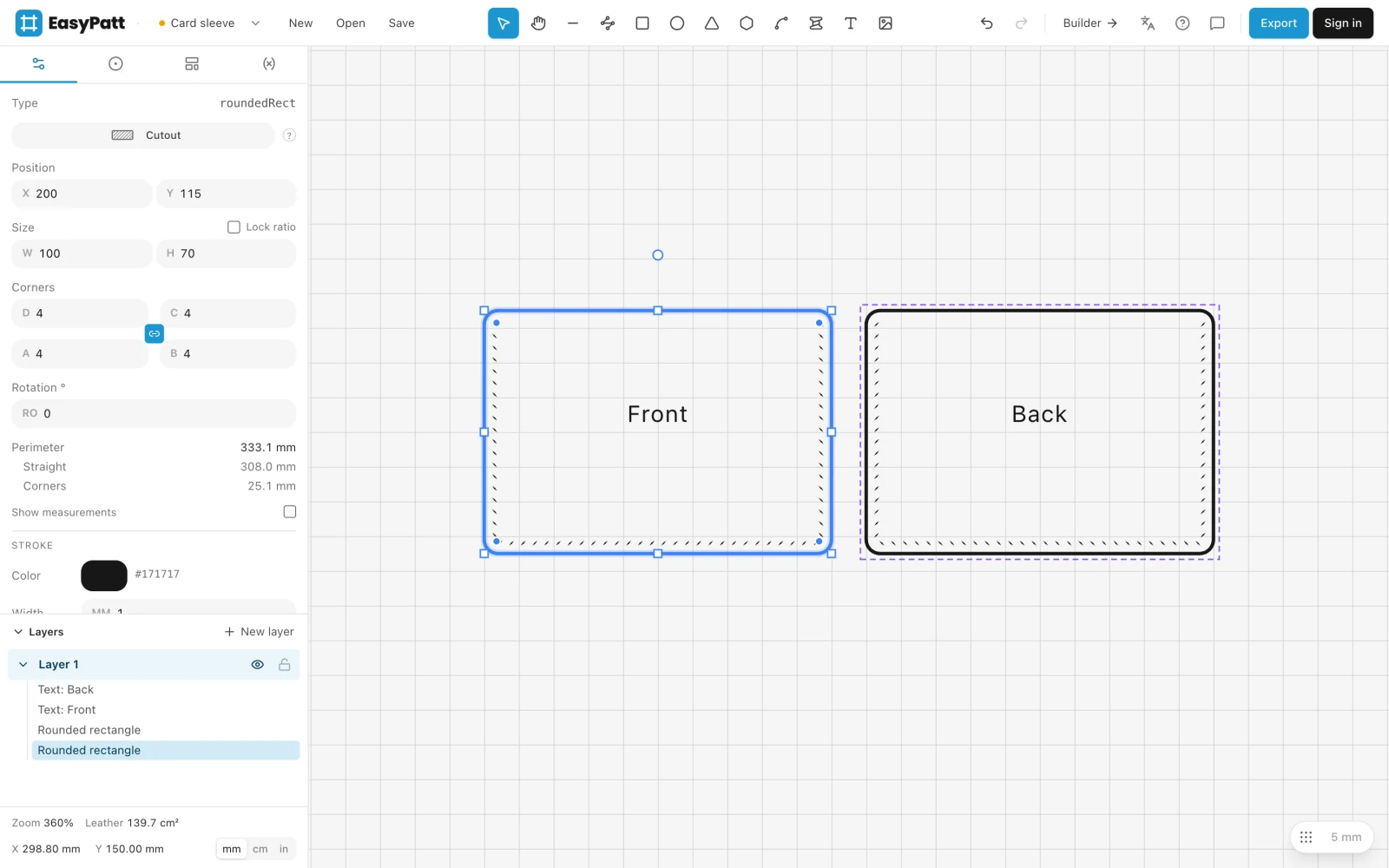
The editor has three parts: the top bar with the tools, the panel on the left, and the canvas, where you draw at true size in millimetres.
The three parts
The top bar
- Project name
- Click it to rename the project. The arrow next to it opens the project menu: your projects in the cloud, the Builder, a new project and opening a file.
- New, Open, Save
- Start, open and save a project. See Saving and opening projects.
- The tools
- Everything you draw with, from Select to Image or PDF. Rest the mouse on a tool to see what it does, with its key.
- Undo and redo
- Or press ⌘Z and ⌘ShiftZ.
- Builder
- Opens the wallet Builder. See Start a wallet in the Builder.
- Language, help and feedback
- Change the language, open this help, or send a message to the maker of EasyPatt.
- Export
- Shows the printed pages on the canvas and downloads the PDF. See Printing to scale.
- Sign in
- Optional. See Your account.
The panel on the left
The panel has four tabs. The first shows whatever is selected, and switches back to it by itself when you select something.
- Properties
- The size, position and settings of the selected part, or the settings of the tool you are using.
- Hardware
- Rivets, snaps, buckles and other hardware to place. See Hardware.
- Templates
- Your saved shapes and the shared library. See Templates and the shared library.
- Variables
- Named sizes for the whole project. See Variables.
Under the tabs is the list of layers, and at the very bottom the zoom, how much leather your parts use, the position of the mouse, and the unit: mm, cm or in.
The canvas
The canvas is where you draw, at true size: 10 mm on the canvas is 10 mm on the printed pattern. The grid helps you place things; its button and size are at the bottom right.
- Drag with the right mouse button, or hold Space and drag, to move around. Scroll or pinch to zoom.
- Right-click a part for its most used actions: copy, duplicate, mirror, group, lock and more.
When the canvas is empty, a highlight runs across the tools. Pick one and draw: a rectangle is a good start.
Language
EasyPatt speaks 14 languages. It starts in your browser’s language; to change it, click the language button in the top bar. The choice is remembered on this device.
Printed patterns keep a few words in English, such as Verify 50 mm next to the 50 mm square.
Something missing or unclear? Write to support@easypatt.com and it gets fixed.