
- Help
- Reference
Phone and tablet
EasyPatt works on phones and tablets in the browser. The screen is arranged for fingers; everything works as on a computer.
Where things are
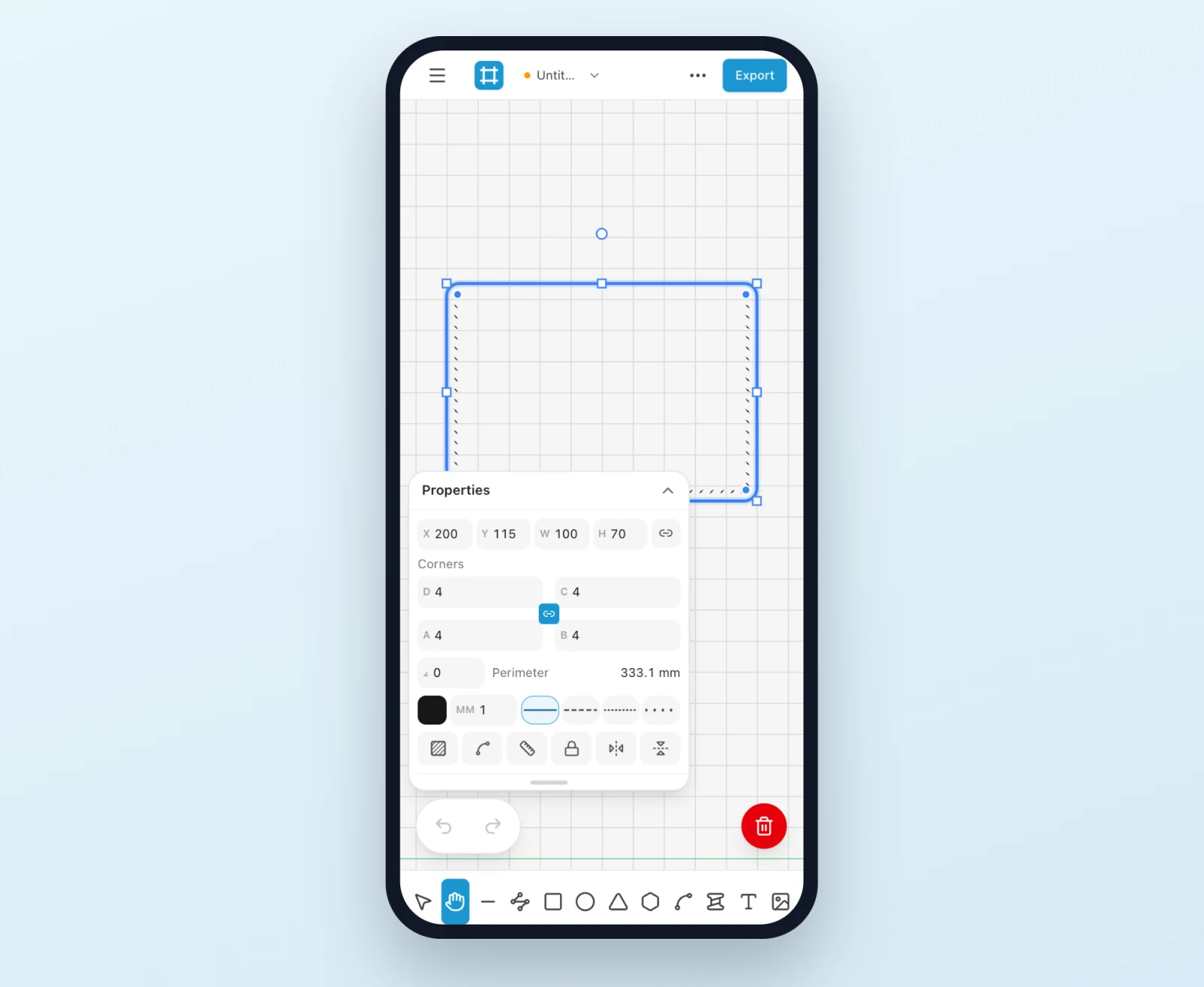
- The tools are along the bottom. Press and hold one to see what it does.
- The panel with its tabs and the layers is behind the ☰ button at the top left.
- New, Open, Save, the library, help and sign-in are in the ⋯ menu at the top right.
- Undo and redo float at the bottom left; a red button at the bottom right deletes what is selected.
Touch
- Tap
- Selects a part, or opens a stitch line. Tap empty space to clear the selection.
- Drag
- With nothing under your finger, moves the canvas. On a selected part, moves it; on its handles, resizes or turns it.
- Two fingers
- Pan and pinch to zoom, with any tool.
The editor rests on Hand instead of Select: it picks and moves parts on a tap and pans everywhere else. Pick Select to drag a box round several parts.
The settings card
When a part is selected, its settings show in a card in a corner of the canvas, moving to the corner where it hides least. Tap the card’s top to fold it away, and again to open it. Its row of buttons has the part’s main actions: fold line or cutout, mirror, lock and more.
Export on a phone
Export opens its options in a sheet at the bottom. Swipe it down to see the pages on the canvas; tap Export again to leave.
Something missing or unclear? Write to support@easypatt.com and it gets fixed.