
- Help
- Arranging parts
Selecting, moving and copying
Everything you do to a part starts by selecting it with Select. Then move it, size it, turn it or copy it.
Select
- Click
- Selects a part. A closed part can be clicked anywhere inside it.
- Shift-click
- Adds a part to the selection, or takes it out again.
- Drag on empty space
- Selects every part the box touches.
- ⌘A
- Selects every part and stitch line.
- Esc
- Clears the selection.
Where parts overlap, the one on top is picked. Clicking any part of a group selects the whole group.
Move
Drag a part to move it; you do not need to select it first. With several parts selected, drag any of them, or the empty space between them, to move them all.
As you drag, guides line the part up with others and labels show the gaps around it. See Snapping and guides. Press Esc during a drag to put it back.
Resize and turn
- Rectangles
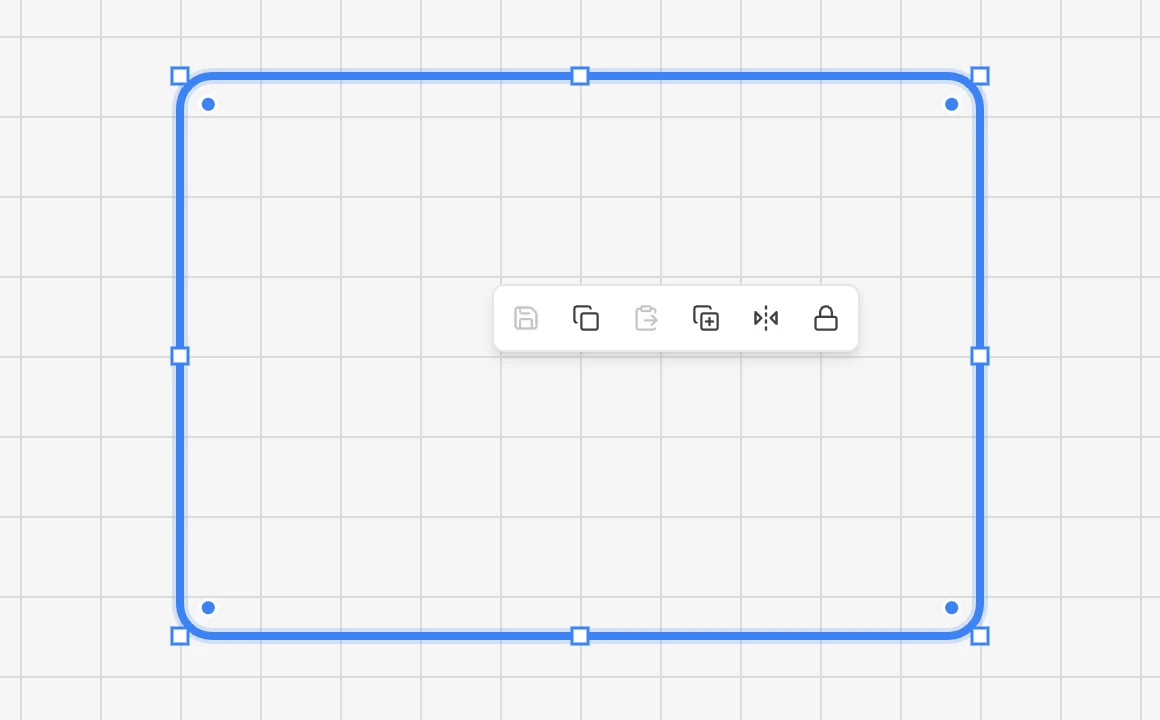
- Drag a corner or the middle of a side. Hold Shift on a corner to keep the proportions, Alt to resize from the centre.
- Circles
- Drag any of the four handles to change the radius.
- Text and images
- Drag a corner: the box grows from its centre.
- Outlines, triangles, polygons
- Have no size handles: move their points, or type their size in the panel.
- Several parts
- One box around them all, with handles to resize them together.
To turn a part, drag the round handle above it. Hold Shift to turn in steps of 15°. For an exact angle, type it in Rotation °, or Rotate by ° for several parts.
Copy, paste and duplicate
| ⌘C | Copy the selection |
| ⌘V | Paste it where the mouse is |
| ⌘D | Duplicate: a copy 10 mm to the right and up |
A part’s stitch lines are copied with it, and copies land on the same layer as the original. The copy lives in this tab only, until you reload.
If you copied an image, such as a screenshot, from another program, ⌘V uploads and places it instead (signed in).
Delete and undo
| BackspaceorDelete | Delete the selection, or just the picked point or side |
| ⌘Z | Undo |
| ⌘ShiftZor⌘Y | Redo |
Every change can be undone, up to 200 steps back. A whole drag is one step. Deleting a part deletes its stitch lines too.
The right-click menu
Right-click a part for a small bar of its most used actions: save it as a template, copy, paste, duplicate, mirror, lock, and group or ungroup.
Something missing or unclear? Write to support@easypatt.com and it gets fixed.