
- Help
- Wallet Builder
Start a wallet in the Builder
The Builder makes a complete wallet pattern from a few numbers. Pick a type, set the size, the pockets and the stitching, and every piece is worked out for you, with the stitch holes lined up through every layer.
Open the Builder
In the editor, click Builder in the top bar, or open the project menu (the project’s name, top left) and pick Builder…. Signed in, the same menu also lists your Builder designs.
The Builder opens on Start a wallet: four wallet types to start from, and your designs under them.
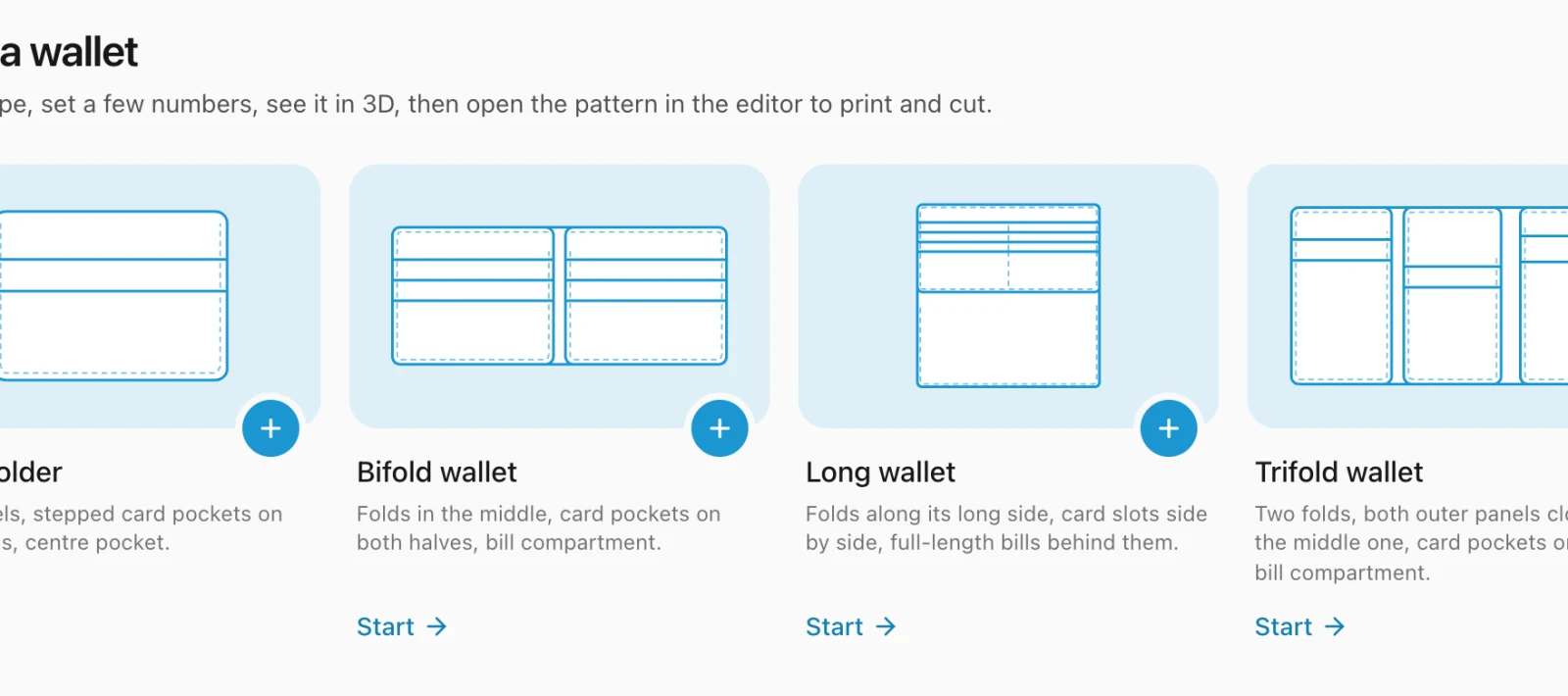
The four wallets
- Card holder
- Two panels with stepped card pockets on the outside of each and a centre pocket between them.
- Bifold wallet
- Folds in the middle, with card pockets on both halves and a bill compartment the whole width.
- Long wallet
- Folds along its long side. Card slots sit side by side and bills lie full length behind them.
- Trifold wallet
- Two folds: both outer panels close over the middle one, with card pockets on all three.
Click Start under one of them. Each one starts as a wallet that works as it is, so change only what you want. How the wallets are built explains each one piece by piece.
The design screen
The drawing of the wallet is on the left with its settings under it, and the 3D view is on the right. On a narrow screen the 3D view is on top and the rest scrolls under it.
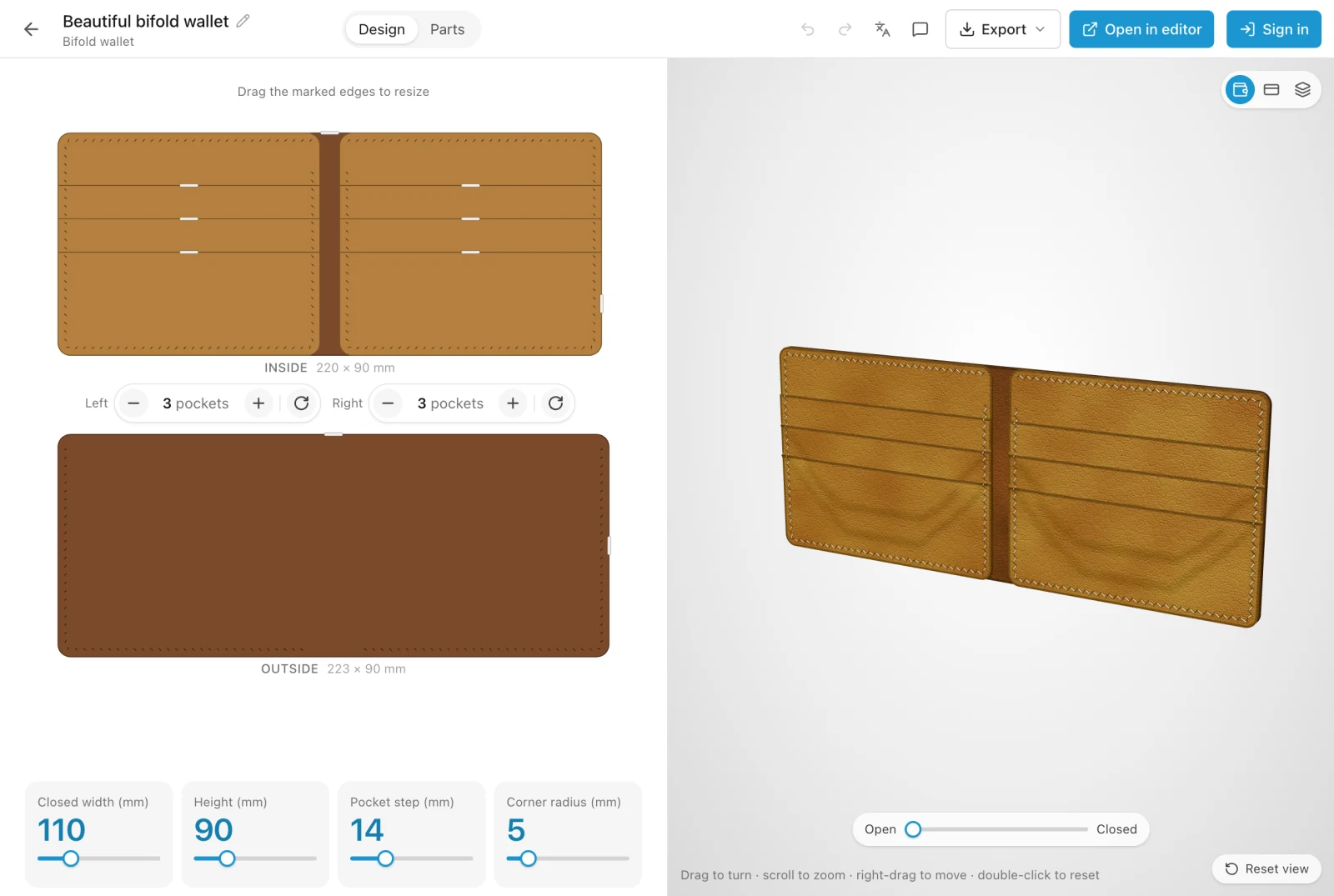
- Design
- The drawing and every setting. See Size, pockets and stitching.
- Parts
- Every piece to cut, with its size, leather thickness, number of holes and how many to cut.
- Export
- Download the pattern as a PDF at full size, or open it in the editor with the pages shown.
- Open in editor
- Turn the wallet into an ordinary editor project you can change by hand.
Undo and redo are in the top bar too, or press ⌘Z and ⌘ShiftZ. A whole drag of a slider or an edge is one step.
Your designs
A wallet joins Your designs with its first change; one you only look at leaves nothing behind. From then on it saves itself a second after each change.
- Signed out, your designs are kept in this browser only.
- Signed in, they are kept in your account and open on any device. Designs you made before signing in move to your account the first time you sign in.
On the start page, show your designs as Cards or as a List. Rest the mouse on a card to see the wallet turn in 3D. The ⋯ button on a design has everything else:
- The name
- Click it to rename the design.
- Open in a new tab
- Opens the design beside this one.
- Make a copy
- A copy to try something different.
- Download PDF and Print
- The pattern at full size, on the paper you last chose in Export. Print at 100 %, not “fit to page”.
- Share and Copy link
- A link to send someone. See Share a design.
- Delete
- Deletes the design for good, after asking.
Something missing or unclear? Write to support@easypatt.com and it gets fixed.