
- Help
- Arranging parts
Layers
Layers stack parts the way they are sewn: a pocket on a layer above its panel lies on top of it and is picked first. The list is at the bottom of the left panel.
The Layers list
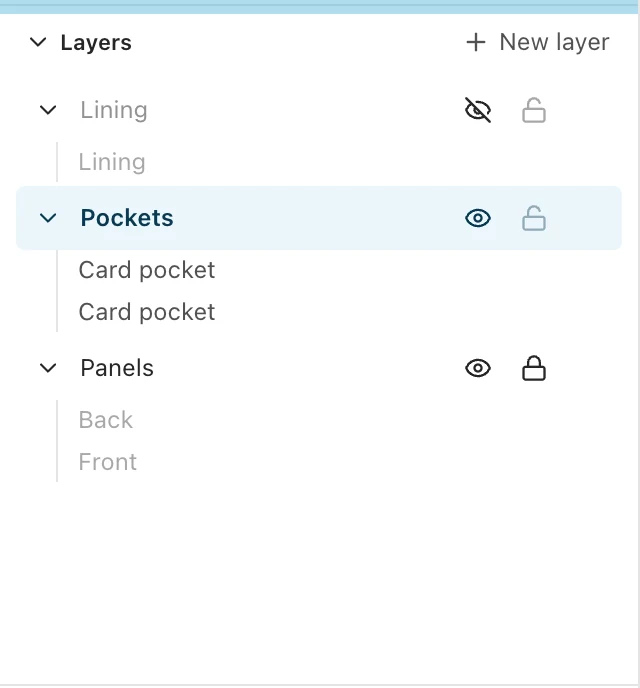
Each layer shows its parts under it. A layer higher in the list lies on top. New parts go on the layer you last clicked.
- New layer
- Adds a layer on top.
- Click a layer
- Selects everything on it, ready to move. Shift-click adds another layer.
- Click a part
- Selects it. Shift-click adds it to the selection.
- Double-click
- Renames a layer or a part.
- Drag a layer
- Moves it up or down the stack.
- Drag a part
- Moves it onto another layer, or above another part.
Drag the top edge of the list to make it taller; double-click that edge for the usual height.
Hide and lock
- Eye
- Hides the layer. Its parts are not shown, cannot be clicked, and are not printed.
- Padlock
- Locks the layer. Its parts are shown and printed and you can snap to them, but they cannot be clicked or moved.
To delete a layer, rest the mouse on it and click the bin. If it holds parts, you are asked first, and undo brings it back.
Good to know
- Copies and pasted parts go on the same layer as the original.
- Images and imported PDF pages always go on the bottom layer, under your drawing.
- If the layer you last clicked is hidden or locked, new parts go on the top layer you can use.
Something missing or unclear? Write to support@easypatt.com and it gets fixed.