
- Help
- Wallet Builder
3D view, parts and export
Before you cut, check the wallet in 3D and in the list of parts. Then print it at full size, or take it into the editor to add your own details.
The 3D view
Drag to turn the wallet, scroll to zoom, and drag with the right mouse button to move it. Double-click or Reset view puts it back. The three buttons at the top right switch the view:
- Wallet
- The wallet in your leathers and thread.
- With cards
- A card in every slot that takes one, and a list of how deep each slot is and how much of its card shows.
- Breakdown
- Every piece laid out apart from the next and named, to see what goes where.
On a folding wallet, the slider under the 3D view opens and closes it. A trifold’s left panel closes first, then the right.
The parts list
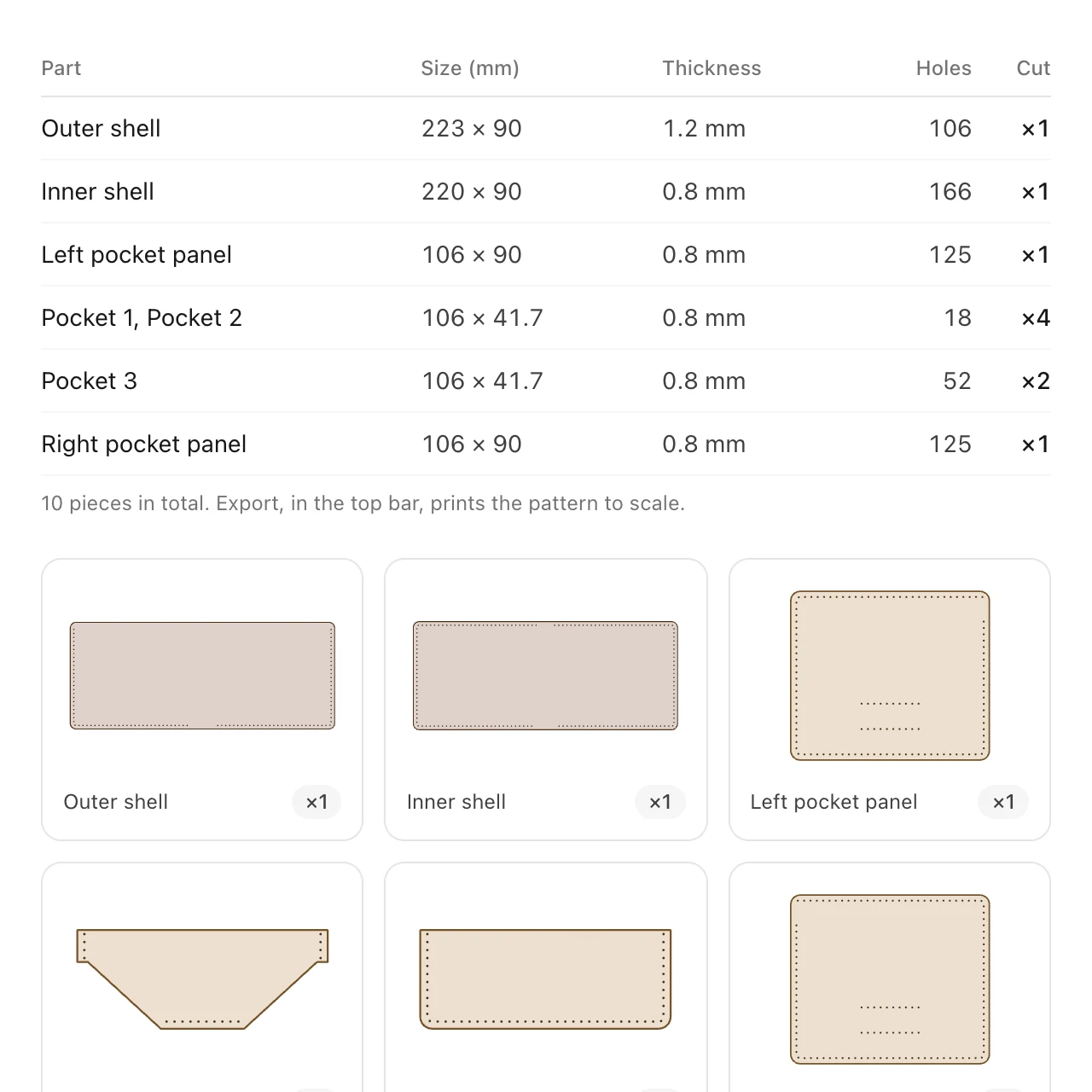
The Parts tab lists every piece with its size, leather thickness, number of stitch holes and how many to cut. Pieces that are the same are listed once, with how many to cut. Under the list, each piece is drawn with its holes.
Print the pattern
- Click Export in the top bar and pick the Paper: A4, Letter or A3.
- Click Download PDF. The PDF is saved to your downloads.
- Print it at 100 %, not “fit to page”, and measure the 50 mm square on the first page before you cut.
Each part is whole on a page wherever it fits, labelled with its name, leather thickness and how many to cut. A part bigger than the paper is split across several sheets with marks to join them. Printing to scale has more about printing and joining sheets.
Review in the editor opens the same pattern in the editor with the pages shown, so you can move parts, change the paper or add your watermark before you export.
Open it in the editor
Open in editor turns the wallet into an ordinary editor project: each part laid out ready to cut, with its stitching and a label saying how many to cut. Each part is a group, so a click moves it whole; ungroup it to change one piece of it.
- Signed in, it becomes a new project in your account each time.
- Signed out, it replaces the one project the editor keeps in this browser. If that project has work in it, you are asked first: save it to a file before, if you want to keep it.
It goes one way. The Builder design stays as it was, and changes made in the editor do not go back to it.
Something missing or unclear? Write to support@easypatt.com and it gets fixed.